 Atelier Livre
Publish your book on Amazon KDP
Have your interior PDF and your cover? Here is how to put your paperback on sale on Amazon, step by step. Allow about 30 minutes the first time.
0Before you start
In the studio, at the Layout step (« La mise en page »), download:
- the interior PDF: the “Download the PDF” button;
- the cover PDF: the “Cover for Amazon KDP” card, to do after finishing the text, because the spine depends on the page count.
Also prepare:
- the title, and a subtitle if you have one;
- a description of a few paragraphs (the back-cover text is a good start);
- up to 7 keywords your readers would type to find your book;
- the price you have in mind.
| Your book | Settings to choose in KDP |
|---|---|
| Story | Black & white interior, cream paper · trim size chosen in the studio (often 6 × 9 in) · No Bleed · Matte |
| Coloring | Black & white interior, white paper · 8.5 × 11 in · No Bleed · Matte |
| Comic | Premium (or standard) color, white paper · trim size chosen in the studio · No Bleed · Glossy |
1Create your KDP account
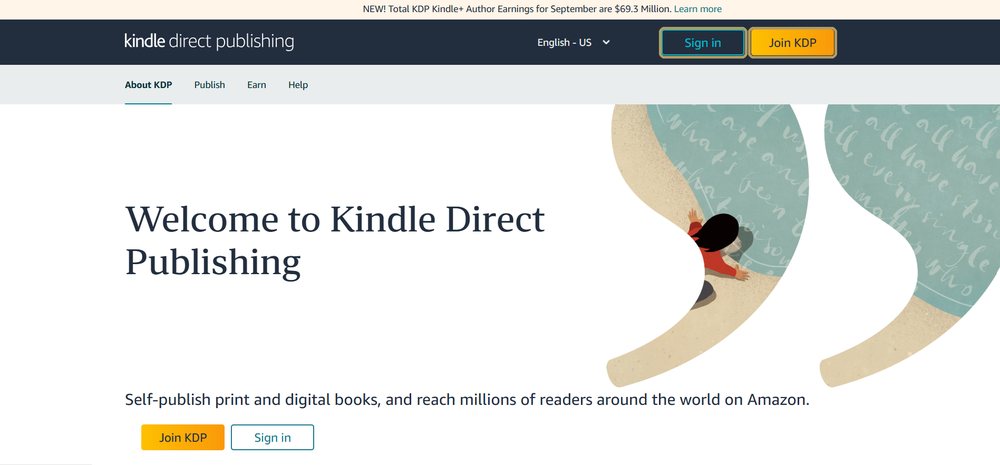
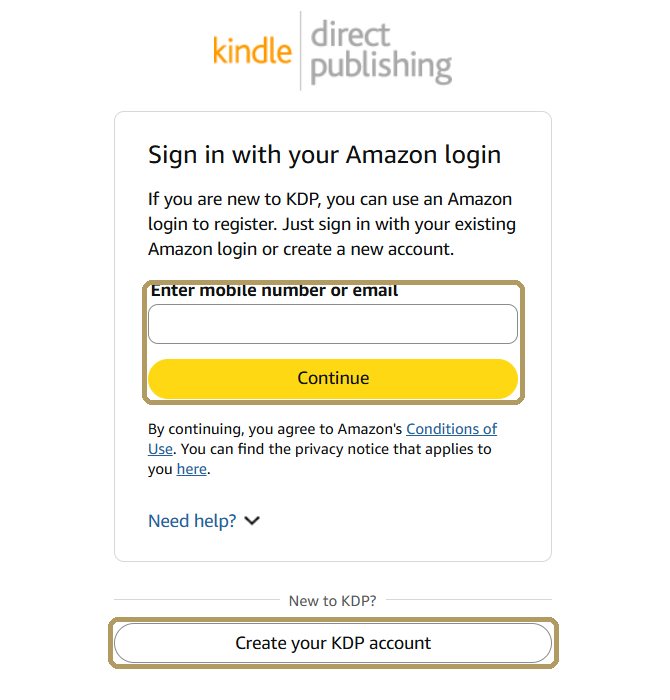
- Go to kdp.amazon.com. Click Sign in to use your Amazon account, or Join KDP to create one.
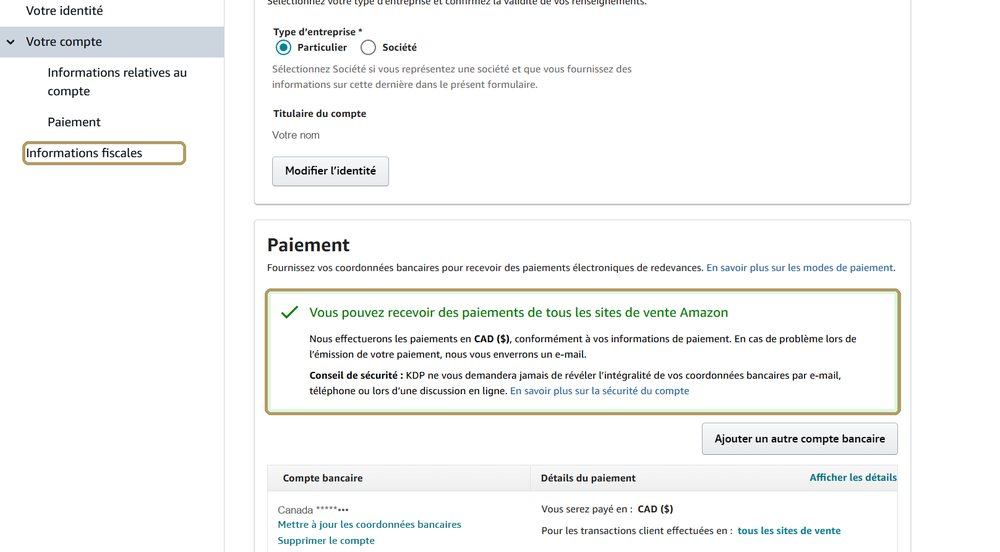
- Open Your Account and fill in your author or publisher information.
- Under Getting Paid, add the bank account that will receive your royalties.
- Under Tax Information, complete the online tax interview. If you live outside the United States, it usually produces a W-8BEN form, which can reduce US withholding tax under a tax treaty.
2Create a paperback
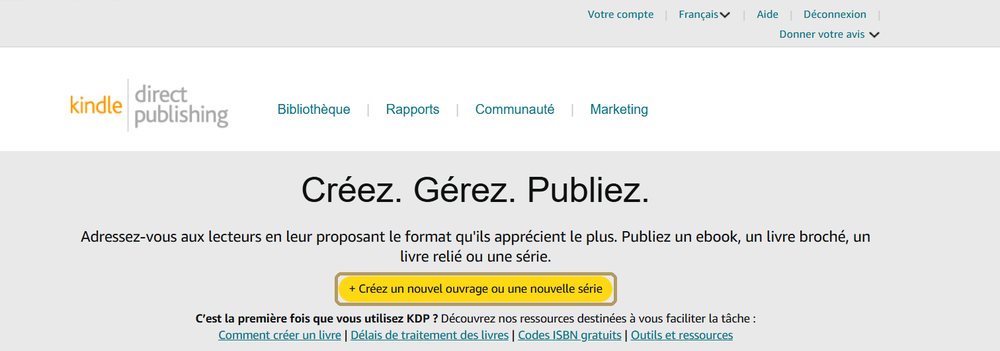
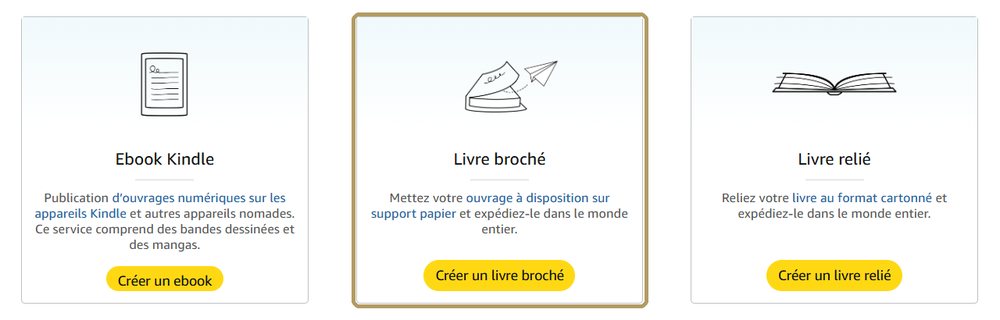
- On your Bookshelf, click the yellow + Create button.
- On the Paperback card, click Create paperback.
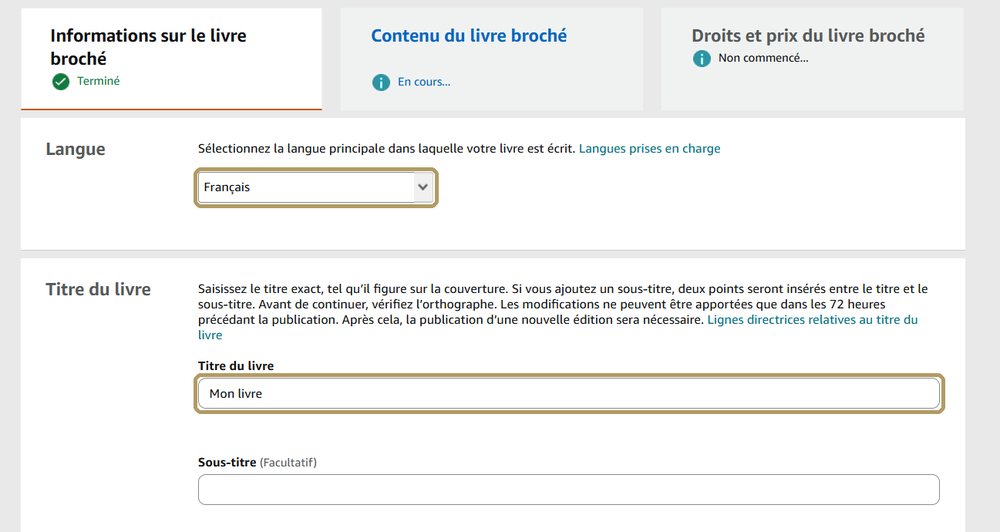
KDP opens three tabs to fill in order: Paperback Details, Paperback Content, Paperback Rights & Pricing. You can save a draft at any time and come back later.
3Fill in the details
- Language: the language of your book.
- Title and subtitle: exactly as on the cover.
- Author: the same name as on the cover.
- Description: start from your back-cover text, a little longer.
- Publishing rights: you own the copyright.
- Audience: for a children’s book, give the age range.
- Primary marketplace: the Amazon store where you expect to sell most, for example Amazon.com. Prices are based on it.
- Categories (up to 3) and keywords (up to 7): be specific, for example “garden grandmother bedtime story” rather than “book”.
Then click Save and Continue.
4Add your files
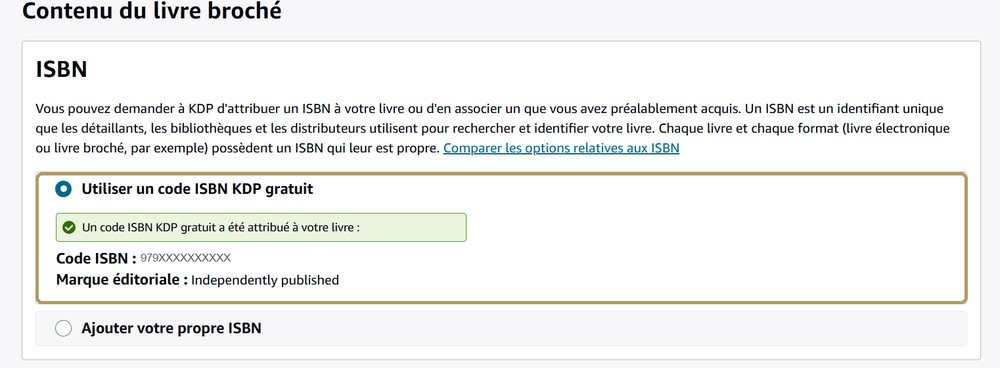
- ISBN: choose Get a free KDP ISBN. It is assigned right away.
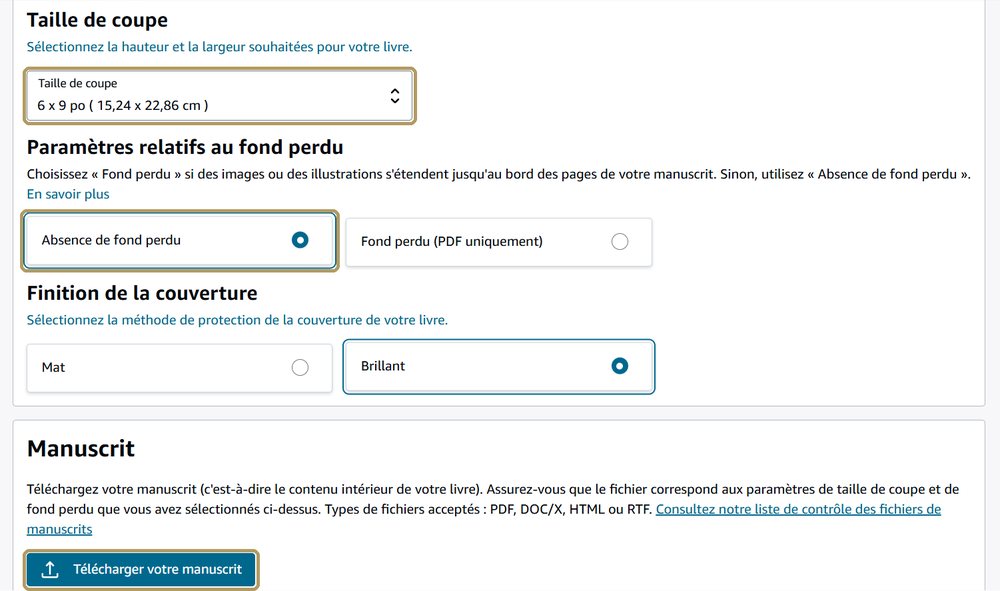
- Print options: follow the table in step 0. Ink and paper type, Trim Size identical to the studio’s, No Bleed, cover finish Matte or Glossy.
- Manuscript: click Upload paperback manuscript and choose the studio’s interior PDF.
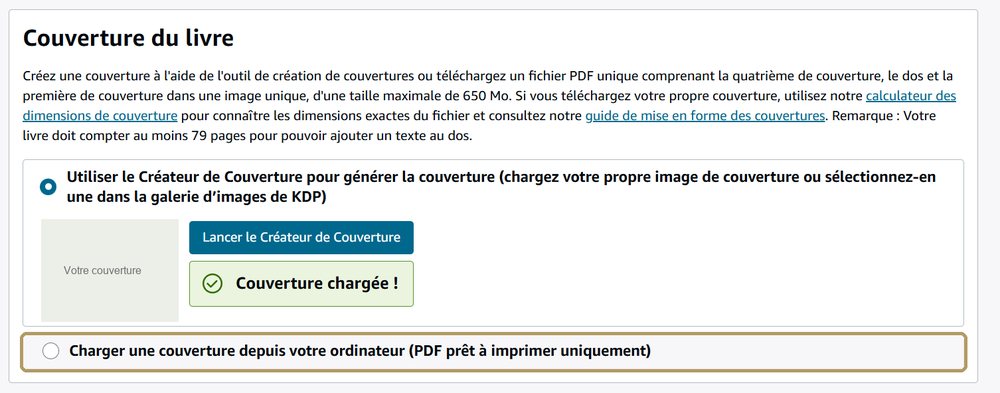
- Book cover: choose Upload a cover you already have (print-ready PDF only), then the studio’s cover PDF. KDP’s Cover Creator is still an option, but your own illustrations are more personal.
5Disclose AI-generated content
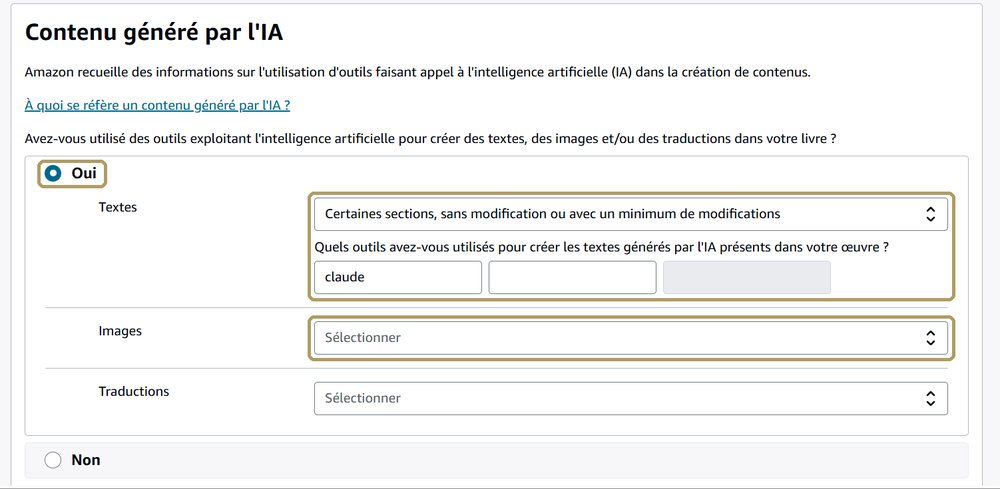
Below the files, the AI-Generated Content section asks whether you used artificial intelligence tools to create text, images or translations.
- Answer Yes if you had text written or images drawn in the studio.
- Texts: choose from the list how much was actually generated, for example “Some sections, with minimal or no editing”, or a broader option if the AI wrote most of it. Tool: Claude.
- Images: do the same for illustrations, panels, drawings and the cover. Tool: OpenAI.
- Translations: leave empty if nothing was translated.
6Check the preview
- Under Book Preview, click Launch Previewer.
- Leaf through the whole book: no text running into the gutter, blank pages where intended, sharp images.
- Look at the cover: readable title, centered spine text, nothing important near the edges.
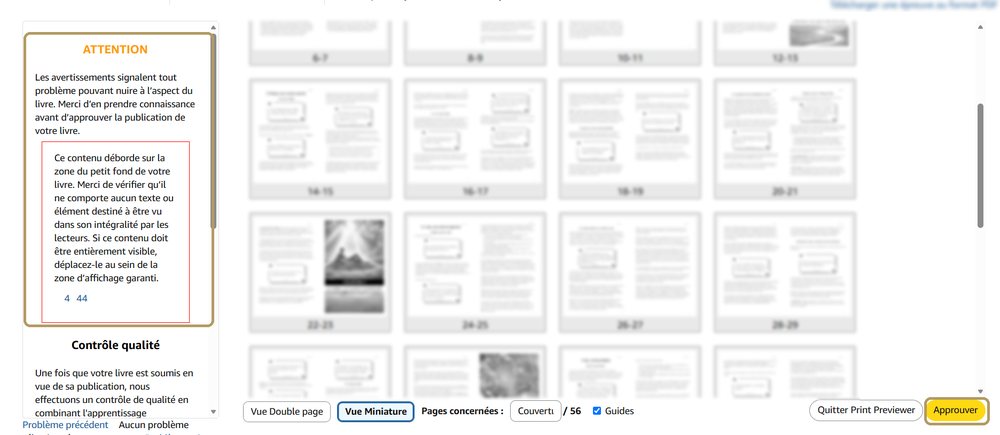
- Read every warning in the panel on the left, then click Approve.

7Set the price and publish
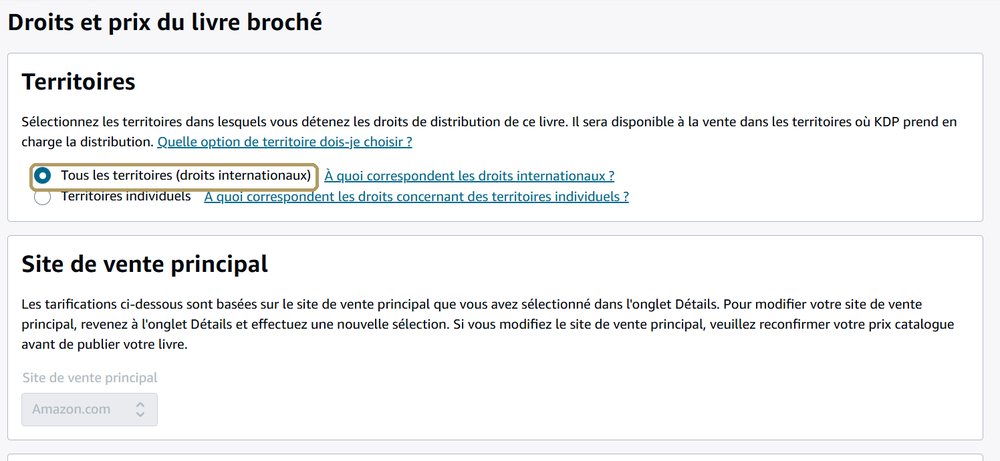
- Territories: All territories (worldwide rights), unless you have a specific reason.
- Price: enter your price for the primary marketplace. KDP shows the printing cost and the royalty you will receive for each sale, and suggests prices for other countries.
- Expanded Distribution (optional): also sells to bookstores and libraries, with a lower royalty.
- Click Publish Your Paperback Book.
Amazon reviews the book, usually within 72 hours, then emails you when it is on sale. You then follow your sales under Reports.
No book yet?
Create it in the studio: the outline is free, and you get the interior and cover ready for KDP.
Start my book